You can use macros to vary the appearance of one or more colors of your template based on the date of any token.
➢This is very useful in scholastic diaries where each month often uses a totally different palette of colors.
There are 3 parts to dynamic colors: defining the colors, calculating the color's values for a given date, and using the dynamic color.
1. Defining Dynamic Colors
In your QuarkXPress template, define one or more dynamic colors named with names of the form:
C*XX_AnyName
where XX represents any number from 01 to 30 (2 digits), corresponding to the range of allowed macro index values, and AnyName is a name of your choosing (such as WinterHeader). See point 1 of the example below.
Then, while still in your QuarkXPress template, define all the possible "actual" colors that your dynamic color will convert to. For example, for a dynamic color based on seasons, you would want to define the 4 colors in your QuarkXPress template. For a dynamic color based on zodiac signs, you would want to define the 12 colors in your QuarkXPress template. See point 2 of the example below.
2. Calculating the Dynamic Color Value
Write a macro to calculate the name of the "actual" color that the dynamic color will use, depending on the date. See points 4-5 of the example below.
Then, whenever one of these dynamic colors is selected in macros or as text formatting, the macro of index XX of the color name will be evaluated, and the color actually used will be the value of the sResult coming from that macro's evaluation.
3. Using the Dynamic Color
Dynamic colors can be used everywhere where you would use one of the colors defined in your template, including as one of the template colors, except in Saras (macros are performed based on the date of a token, and Saras have no relation to dates).
➢Dynamic colors are defined through a macro, but using a dynamic color does not require the use of a macro.
For example, you could use a dynamic color in the current month dates formatting options of minicalendar options to show some dates of the month in one color, and some dates in another color, depending on each date's season or zodiac (for the example described above).
You could of course use the dynamic color in the resulting actions of a macro (see points 3 and 6 of the example below), but just as you would use any other fixed, actual color.
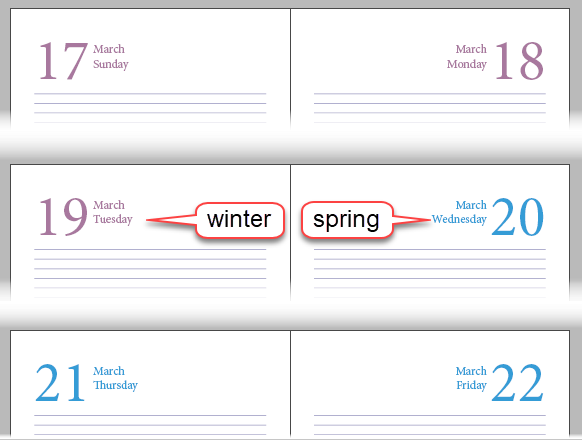
In a diary, we want the dates represented by the tokens [d] , [Dddd] and [Mmmm] to appear in different colors based on which season the token is in (spring, summer, autumn and winter).
1 |
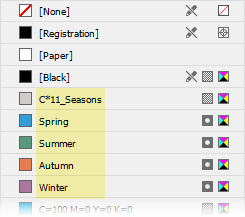
In your QuarkXPress template, define the dynamic color C*11_Seasons. Here, we use macro *11, but we could have used any valid macro index from *01 to *30.
The appearance of this color is not important, as it is only a place holder and will never displayed as defined in the template. |
 |
2 |
In your template, define the 4 colors to use, depending on the season.
➢In the example on the right, we have named the 4 colors Spring, Summer, Autumn, and Winter, to make it easier to refer to them later, in the macro we use to determine which color to use, based on the date of a token.
But we could have used any name. |
|
3 |
In your template, add a macro index to any token whose color will need to change depending on the season.
➢Here, in the example on the right, we used macro *1, but we could have used any valid macro index from *01 to *30, as long as it was different from the macro index used for the dynamic color (*11 in the present example).
Note that the indices of the color macros (*11 in the present case) do not appear in any of the tokens. |
 |
4 |
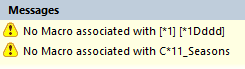
After scanning your template, there are 2 messages related to the macro indices specified above.
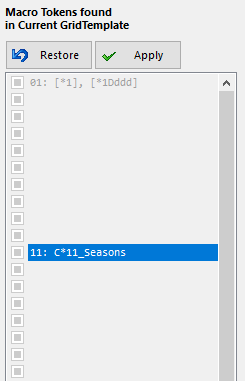
We begin by specifying the macro for the *11 dynamic color. |
 |
|
The important aspect of any macro used for dynamic colors, as in the example below, is that it should return as sResult the exact name of a color as it is defined in your template, and bResult as true. var |
 |
5 |
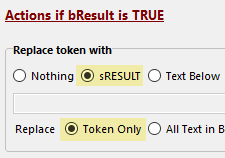
For the resulting actions of the macro used for a dynamic color, we keep the default options, as shown on the right.
➢Note that any other group of resulting actions settings, such as Style, Font, Paragraph and Textbox, will be ignored for a color macro.
The only purpose of a color macro is to obtain a color name based on the date of a token. |
 |
6 |
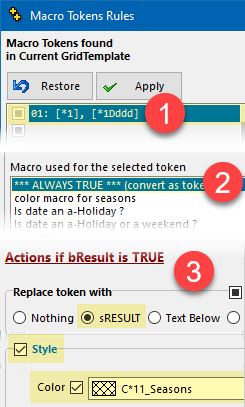
We can now use the dynamic color(s) as any other color, once we have specified the macro to use for all the dynamic colors of our template (only one in the present example, but you can have as many dynamic color as you want).
We specify that the *1 macro should use the always true macro, as shown in steps 1 and 2 on the right.
Then we specify that the resulting action should be to change the text color to the color C*11_Seasons, as shown in step 3 on the right. |
 |
7 |
Once you generate the script you can see below that the tokens shown in step 3 change color based on the season of their date, as per the colors defined in step 2. |
Remember that dynamic colors are a way to define colors dynamically (based on the date of each token), but that they do not necessarily imply the use of further macros to be able to use them.
Macro colors can be used everywhere where you would use one of the colors defined in your template, except in Saras.
Topic 181125, last updated on 03-Sep-2026