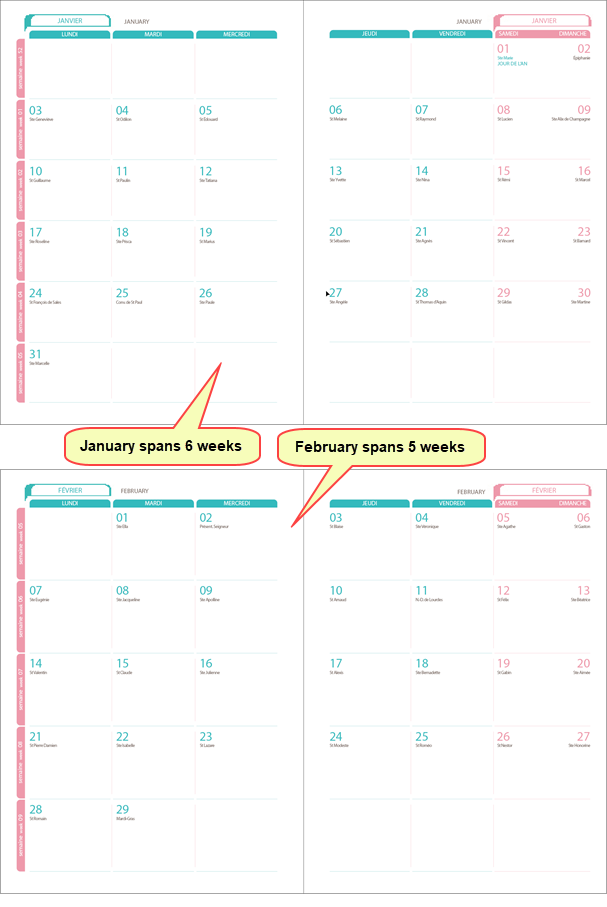
a checkerboard template with a slightly different design depending on the number of weeks spanned by the month being displayed
A checkerboard style monthly template with fixed weekday columns may have months whose dates span four, five or six rows of weeks.
You can place alternative layouts on separate layers of one GridTemplate, and use ZapLayer tokens to retain only the appropriate layout during diary generation.
This allows a single DiaryGridLine to generate a series of months without generating alternative spreads for manual deletion.
Preparing the template
Create a monthly GridTemplate containing the required number of pages, for example one month on two pages, as in the example on the right.
Set First Date of Template to Week of the 1st and use Backtrack Every Month, and set Week Starts On to match the weekday columns of the design.
Prepare the alternative layouts for four, five and six weeks.
•With weeks starting on Monday, the four-week layout is needed only for a February containing 28 days and beginning on a Monday.
•Keep the same DayValues for corresponding dates in all alternatives.
•Each layout represents the same month; the alternatives must not be coded as successive months.
Keeping existing layers
Each alternative may occupy one layer or several layers. There is no need to flatten an existing template into a single layer before combining it with the other alternatives.
For example, if each layout uses separate dates, lines and background layers, the combined template can contain nine layers:
•4w-dates, 4w-lines, 4w-background
•5w-dates, 5w-lines, 5w-background
•6w-dates, 6w-lines, 6w-background
The prefixes 4w-, 5w- and 6w- are only a naming convention to help you identify which layers belong to each layout. Q++Studio does not use these names to select a layout. Only the ZapLayer tokens and their conditions control which objects are deleted.
Keep all objects specific to an alternative on its associated layers. Objects shared by all alternatives may remain on separate common layers which are not deleted by the layout-selection tokens.
Selecting the appropriate layout
Use zap tokens with the ZL prefix to delete all the elements of a given layer for a specific page, as shown in the table below, where the minicalendar marker token is a convenient way to select a date inside (the "8") the current month (the "+00") with a built-in zap layer mechanism (the ":ZL").
number of weeks |
zap token to use on layer |
|
4 |
[8mc+00:ZL~4] |
Delete if the month does not span exactly four weeks |
5 |
[8mc+00:ZL~5] |
Delete if the month does not span exactly five weeks |
6 |
[8mc+00:ZL~6] |
Delete if the month does not span exactly six weeks |
Important: when using mini-calendar marker tokens to control the display elements that belong to the whole template, as is the case when using the zap tokens above, make sure that the weekday chosen for your mini-calendar week start is the same as the one chosen in the GridOptions. |
||
A ZapLayer token deletes objects on the same layer and the same page as the textbox containing that token. It does not delete the layer throughout the document, and it does not affect other layers with similar names.
Therefore, place the appropriate ZapLayer token or tokens on every page and every layer containing objects of that alternative. In the nine-layer example, each of the three 5w- layers needs the same five-week selection logic on both pages where it contains objects. Apply the corresponding logic to all 4w- and 6w- layers as well.
Use a separate, ungrouped textbox for each layer-selection token, on the page and layer it controls. Layers containing only lines or backgrounds also need their own token textbox. Keep the alternative layers visible and available for scanning and generation.
Outside days and DayValues
Monthly Outside Days controls whether dates from the preceding and following months appear within the retained layout. This is separate from selecting the number of rows. Keep Week of the 1st to preserve the weekday alignment, and use Hide with Blank if the outside-date tokens should be emptied while the grid remains.
For week numbers, or week related tokens:
•1st row/week: base these tokens on the right-most position, DayValue 7, to ensure that tokens referring to the first week are never deleted due to outside days option. For example [7w] or [7Week] [7ww].
•All other rows/weeks: base these tokens on the DayValue of the left-most position, that is to say:
o8 for row/week 2
o15 for row/week 3
o22 for row/week 4
o29 for row/week 5
o36 for row/week 6.
For tokens that refer to the current month in general, but not a particular day of that month, use the DayValue 8 to ensure that you are referring to a date that is certain to be inside the month (as was done in the table above for the zap layer tokens) and to ensure the token is not suppressed because its date of it DayValue falls outside the month.
Script settings and testing
Select the combined template on a single monthly DiaryGridLine, and set its Begin/End Rules to cover the required months. For example, one line covering January and February replaces separate five-week and six-week lines for each month.
See also: zap tokens, monthly templates, monthly outside days.