The Line Endings and Formatting dialog is used to specify what line ending to use and, eventually, if any formatting should be applied to that paragraph, depending on the corresponding special case condition being true (to avoid having to copy multiple settings manually between the various GenTokens, you can use the Copy to/from button located at the top right of the TabSheet to copy GenTokens options and sub-options all at once).
The simplest line endings are:
Soft Return |
This setting separates the current line generated by the GenTokens Options from the next using a soft return.
Visually this looks like a paragraph, but in reality it is only a change of line, which means that any paragraph attributes such as rules above/below and space before/after do not occur between lines separated with a soft return. |
This setting separates the current line generated by the GenTokens Options from the next using a hard return.
➢Hard Return creates a new paragraph with the paragraph attributes of the original [GenTokens] token. It does not reset those attributes to an unformatted paragraph.
All the paragraph attributes of the original [GenTokens] token, such as rules above/below and space before/after will occur for lines generated using the hard return line ending setting. If there is not paragraph mark after the GenTokens token, any rules above/below that are part of the paragraph attributes of the token will not be visible in the GridTemplate, but will become visible in the output file because each generated line ends with a line ending (even the last generated line). |
|
Tabulation |
Strictly speaking, this is not a line ending, but it can be useful to separate days of the week for cases when you might want to build a mini-calendar, date-by-date, using [GenTokens]. In that case you would specify the tabulation as the default line ending and use formatting or Xpress tags (see below) for Sundays. |
The soft and hard returns options are ideally suited to simple grids where a simple pattern is turned on (using a hard return) or off (using a soft return) alternatively.
There are 4 other simple line endings that are seldom used, but very powerful when required:
Nothing |
Strictly speaking, this is not a line ending, but it can be useful to create your own duration tokens made up of multiple tokens. |
Next Column |
This setting lets you change from one column to another, rather than having the series of tokens on separate lines. Each line is separated by a next column special character. |
Next Box |
This setting lets you change from one linked/chained textbox to another, rather than having the series of tokens on separate lines. Each line is separated by a next (linked) box special character. |
Skip Line |
This setting means that if the corresponding special case condition is true then the current line (text and line ending) will be skipped. This would, for example allow you to use a GenTokens token to create a more powerful holiday or Moon duration token by skipping days when there is no holiday (or Moon phase). |
For more power and control, Formatting is the best suited option, allowing you to use the settings that you would find in the paragraph attributes dialog of QuarkXPress or InDesign. Selecting the Formatting type of line ending displays the paragraph formatting page control with 3 tabs:
The settings of this tab are the same as those of the corresponding tab in QuarkXPress or the various menu items that appear when using the hamburger menu at the top-right of the InDesign user interface. Note that the Language specified for each paragraph is set to English, to ensure compatibility with users who do not have the Passport version of QuarkXPress. In any event the language used makes no difference to a paragraph mark. In InDesign, leading is a text attribute. The Leading value in the GenTokens Formats settings is ignored. To change leading, use the macro or saras character attribute leading instead. |
|
This tab is quite different from the corresponding tab in QuarkXPress and does not correspond to the tabs settings user interface of InDesign, although the values work the same. You can specify a series of tabs, their position, alignment and fill characters, and you can additionally insert many tabs at once, using either of the Add Multiple Tabs or Add Tabs from Xtags buttons when using QuarkXPress. |
|
The settings of this tab are the same as those of the corresponding tab in QuarkXPress or the paragraph rules dialog of InDesign.
Note that: •To be able to specify a negative offset the offset units must be set to mm (not %). •The various styles of dashes and stripes that you may have created in your template, will be available to select in the Styles dropdown combo. •When a rule above is used to shade a full day row, its Width normally matches the height of that row (usually the leading of the original GenTokens token). The term Width is potentially confusing: it is the rule’s vertical thickness, not its horizontal length. InDesign calls this measurement Weight. See the InDesign checks for partial-height shading and spacing considerations. |
Each of the three tabs (Formats, Tabs and Rules) has an Override checkbox. Check it to use that tab’s settings for the generated paragraph.
Leave it unchecked to retain the corresponding attributes of the original [GenTokens] token, as with Hard Return.
Removing an unwanted rule: disable the corresponding Rule above or Rule below setting. Do not simulate disabling it with 0% Shade, 0 pt Width/Weight, or None Color: the rule remains enabled and can interfere with solid-colour objects underneath or overprint. Keep the special case, its conditions and its other required formatting active. Check these settings even when copying a case whose output appears correct; the source case may already contain an unsuitable rule configuration.
Retaining the original token’s attributes and removing an inherited template rule are separate operations. If a rule remains, inspect the original token’s effective paragraph formatting. See Rules Above and Below and the XML example.
Note that the measurements of these 3 tabs are specified using the very powerful measurements editors which can save you a lot of time when setting up a GridTemplate. If you are not familiar with the properties of these edit controls, click on their link to learn more about them.
Finally, for those cases where the condition or the line ending is too complex, you can use either of the other 2 options:
Macro Token |
For cases where the condition that determines the type of paragraph formatting is very complex, you can choose to place a macro token at the end of each generated line, a macro token presumably to be replaced by Xtags Text.
It is important to note that this macro token will be converted as any other macro token, which means that you must include a return character in either sResult or the Xtags Text used.
Also, this option can be used to hold a regular, non-macro, token, as well as plain text, such as a • bullet separator, for example. |
Xpress Tags |
This option allows you to specify virtually any Xpress Tags text as line ending to separate the current line from the next.
This option is powerful and lets you specify line separations such as double returns that cannot be achieved with the Formatting options above (which is limited to a single line ending).
However you should feel at ease with Xpress Tags before attempting to insert raw Xpress Tags into this field as results from incorrect text can range from bizarre output to a solid QuarkXPress crash. An excellent reference on the Xpress Tags descriptor language can be downloaded from www.emsoftware.com.
Note that InDesign does not support XPress Tags. |
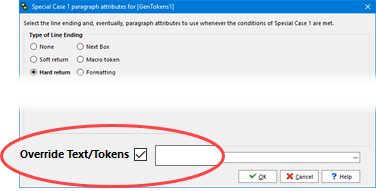
Note that overriding the text and tokens only applies to the text to be displayed on the current line, and that it still allows you to select the line ending of your choice (the option to override text and token is not available, for obvious reasons, if the line endings are set to Macro Token, XpressTags, or Skip Line, as described above).
See also: GenTokens Options, GenTokens Tokens, Special Case Conditions, Copying GenTokens Options.
Topic 175920, last updated on 28-Oct-2026