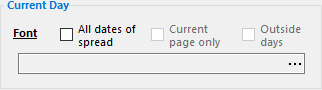
For obvious reasons, Current Day options are only available for daily templates.
Default Behavior
By default, the formatting selected for the current day of a mini-calendar will be applied to only one date, the date corresponding to the DayValue of the mini-calendar token.
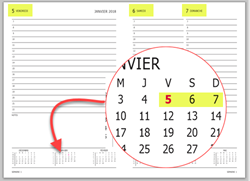
None of the other date contained in the same 2-page spread will be highlighted.
As can be seen in the example on the right, with the default options, the bold+magenta formatting is only applied to Friday's date, and not to the Saturday and Sunday dates that are also present on that 2-page spread (the yellow highlight is added for the sake of clarity, but is not due to the mini-calendar settings used here).
The results obtained using the default options are rarely the desired ones.
Therefore, additional current day visibility options are almost always used in Current Day mini-calendar options.
Additional Current Day Visibility Options
Based on the 6th page of a 7 days on 6 pages template (the one with Friday on the left fifth page, and Saturday and Sunday on the right sixth page), the additional current day visibility mini-calendar options would give the following sample results:
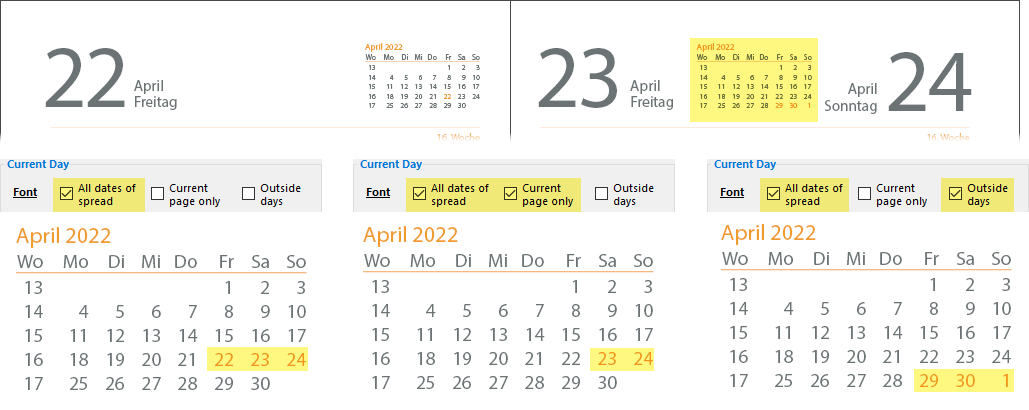
Use this option to apply the Current Day font formatting to all dates of the current spread (ie. the 2 pages facing the reader at any time).
In the case of a daily grid, this could be a period of 2 days, in the case of a 2 days on 2 pages diary, or 3 days in the case of pge 6 of a 7 days on 6 pages.
Available when All dates of spread is selected. Restricts Current Day formatting to the dates on the page containing the mini-calendar, rather than dates on both pages of the spread.
This option, which is only enabled if the All dates of spread, above, is turned on, determines if the specified font attributes should also applied to any outside days which may be part of the current spread/page selection of dates.
Recall that this setting only determines if the specified font attributes will be applied to any visible outside days, but it is the outside days set of options which determine if a given outside day will be visible or not.
Special Cases
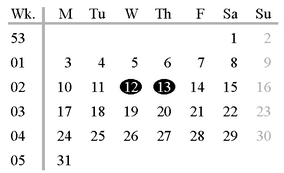
To get that result, you would:
1.turn on the All dates of spread option
2.in the font attributes dialog, set the font color to white
3.and then, still in the font attributes dialog, use either the Box create or Box keep option of the minicalendar text framing and shading options.
See also: minicalendar text framing and shading options.
Topic 107095, last updated on 02-Mar-2023